I got a node number a week or two ago, I was assigned 50609, as also want to have a “local”
node I asked for an “extension” ( I don’t know the right word).
I was then assigned 506090, which strangely makes sense to me and 506091.
Now my question, how ho I change the name of 506090.
In my mind, I would like my “local” node ( radio-less node) to be 506090
and my remote node to be 506091.
The way it seems right now, both '90 and '91 have the same name (K8ZGW Remote)
am I missing something, as I don’t see a way to edit the node name.
Hi Don,
Well I’m not a real expert on this stuff, and I use a hamvoip image, but I believe when you first set up a node you give it a name, so I believe if you run through the first time setup on the node you should be able to change the name.
Hope someone else jumps in here with a better answer for you.
Hi Don,
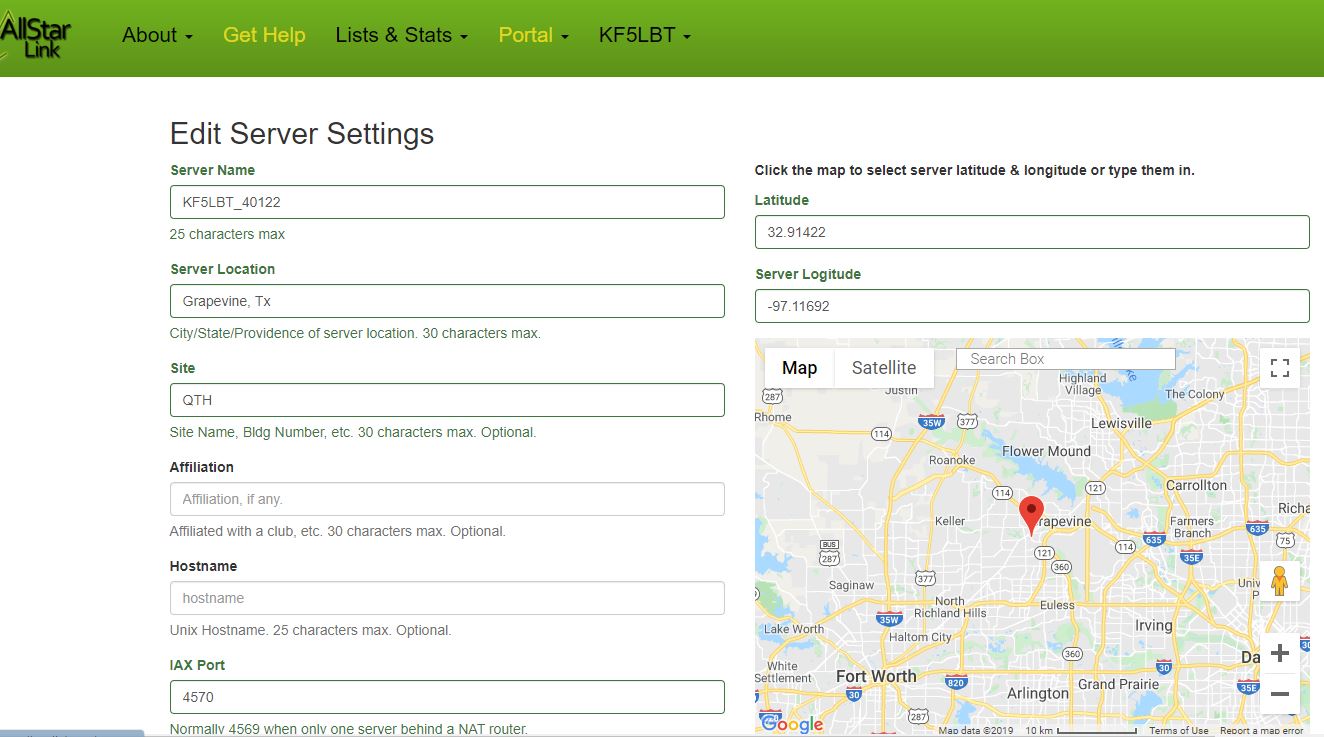
Hey, I miss understood your question, I looked up your node, and looks like your asking about the site name. You can change that by going to https://web-tpa.allstarlink.org/. Then login, and click on the Portal, Server settings. Select your node number, and in the field for site edit that to what you want.
I hope this is what your looking for.
I GUESS i DIDN’T REALLY MAKE MYSELF REAL CLEAR…
I now have two nodes (neither of which really work yet)
One node (my radio-less “local” node) will be 506090.
The other node (my remote 6 meter radio) will be 506091.
I see no way of edit either. I had thought of deleting both and “starting over”,
but I don’t want to lose the node numbers, which to me are a “lucky” accident of numbers.
I am running what I think to be the latest HamVoIP release.
Once I get it working, I will “worry” about the DTMF to change to channel 2.
Well Don, did my last reply answer your question then, or am I still missing it. If you want to change the name of the site that you currently have as K8ZGW Remote, then my last reply would be what you would need to do to change the information. If you need me to send better instructions with screen shots to follow along with, I could put that together and send it to you via an email, I assume your email on QRZ is correct. Let me know. BTW my email address information is current on QRZ.
I guess what I’m confused about, is the “server name”.
Ii may be confused as to what exactly is a “SERVER”.
the way I think I see it ( in my case I’m talking about Raspberry Pis)
each Pi would be a “server”. Is my “radio-less node” a server?
it will use a pi and one of Kevin’s RA-25’s. So, if it is a “server” I would think
it should have a different name then the actual remote radio’s Pi ?
I guess that is what I’m most confuse about …
My radio-less “local” node will be 506090. ( with a server name of K8ZGW_Local.)
While my remote 6 meter radio will be 506091. ( with a server name of K8ZGW _Remote)
Unless my thinking is wrong ?? So I still don’t see a way to change the actual “server name”
Well Don, as I understand it, each Pi is a server. Now then, there are a couple of things here with the Pi. There is a name that you assign when you do your initial node set up, and you give it a name that will be the host name shown when you look at the router you connect to. The server name is what you put in on the Allstar link site for your node. I assume you have created a login and password on the ASL site?
If so when you login, you can select the Server settings which you get to by clicking on the Portal tab on the top of the page. You will see something like this, (I put a screen shot of one of mine). You can edit to to whatever you want.
Mouse over “portal” click, mouse over “server settings” click, mouse over name you want to change then click, Mouse in server name box and click, then back space and enter the desired name and then scroll down and click on the “submit” button.
After you have re-named or created your servers with the desired names, you can then make sure that the desired node numbers are attached to those servers by starting at the top again and…
Mouse over “portal” click, mouse over “node settings” and click, mouse over node number and click, To the right of the node number on the edit page you should see a drop down list of the servers that you have named and you can assign this node number to the desired server. Be sure to scroll down and click on “submit” to save the changes.
Just don’t remove the original or you will “loose” it. However, even “lost” original node numbers can be recovered by AllStar admins, (but we’d rather not) so be careful.